Compatible with Chrome and Edge
Instruction Guide
We have a simple tutorial guide which explains the features of the software extension and what each button inside the extension does. Read our tutorial and welcome guide on how to use the extension to the fullest. Use all the features of this browser software.
If you are interested in other web extensions to install, you might wish to check out the Microsoft Bing Search with Rewards extension.
Microsoft Bing Search with Rewards Extension
It allows you to complete daily offers to get points.
Track the number of points you have currently and the rewards you can redeem with these points.
The ways to get points & get rewarded is search with Bing, browse with Microsoft Edge and shop at the Microsoft and Windows stores to earn rewards.
Sponsored Link:
Other useful extensions
Another extension which would be useful to install is the iCloud bookmarks extension.
It allows to keep your Chrome bookmarks on Windows synced up with the Safari bookmarks on your iPhone, iPad, and Mac.
iCloud will store your website bookmarks so it is accessible even on your iPhone and Mac.
Try these other two extensions and see if it will boost your daily productivity.
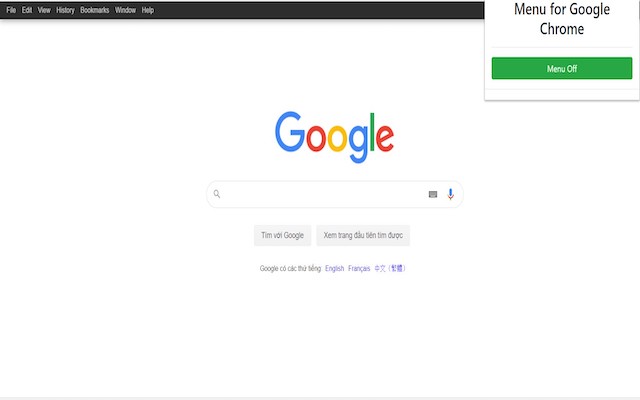
- Get the horizontal menu bar back, and have access to the File, Edit, View, History, Bookmarks, Window links at the top of the Chrome browser.
- Get fast access to all the options available for the Chrome Browser.
Features:
Install and open.
- After installing the extension. You click on the icon to get the menu bar back.
How to activate menu bar for google chrome?
If you are using Google Chrome browser, then you can easily turn on the menu bar for google chrome. Here are the steps that you need to follow to enable the menu bar for google chrome:
Click on View from the menu at the top of your browser window, then click Settings from the drop-down list of options that appears.
Click on Show advanced settings at the bottom of the Settings page and scroll down until you see a section called System.
Under System, locate a section called User Interface and click on it.
Under User Interface, select Menu Bar in the drop-down menu next to Appearance section and click Done button at the bottom of Settings page when done with your changes
Tutorial:
- Install the Extension
- After installing the extension, click on the icon on the toolbar.
Sponsored Link: